


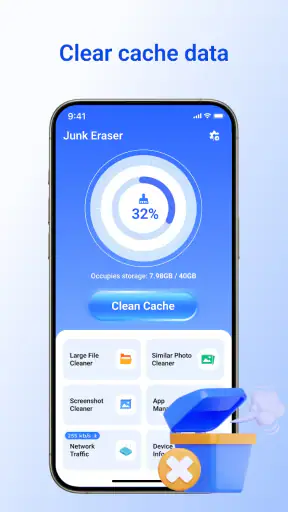
I look at storage-cleaning apps with a little caution. They promise a quick way to make a crowded phone feel manageable, but a tool that scans personal files needs to earn trust as well as save space. Junk Eraser - Storage Manager is a free Android tools app from FRODO VENTURES LIMITED, built around removing cache and other unnecessary clutter. Its central appeal is simple: open it, inspect what is taking room, and tap through a cleanup process instead of digging through several system menus.
That simplicity is the reason I can imagine recommending it to someone who regularly sees a “storage almost full” warning. It is also the reason I would not treat it as a magic maintenance button. A cleaner is useful only when I can understand what it wants to remove and decide whether that removal is worthwhile. My experience with this kind of app is that the best results come from using it as an inspection tool first and a deletion tool second.
How the cleaner fits into everyday phone maintenance
The app sits in the tools category rather than trying to be a full file-management suite. Its store summary focuses on erasing junk, clearing cache, and freeing space. That narrow purpose makes the learning curve approachable. I do not need to understand Android storage architecture before trying it, and the main action is easy to understand even for someone who is not comfortable with technical settings.
A realistic use case is a phone used heavily for messaging, short videos, maps, and social apps. Over time, those apps may accumulate temporary material, previews, and cached content. When storage becomes tight, I would open Junk Eraser - Storage Manager, review the proposed cleanup, and use it to identify the least important material before deciding what to remove. The useful part is not merely the final tap; it is getting a clearer picture of why the phone feels full.
The app has reached over five million installs and holds a 4.4 average from around five thousand ratings, which suggests that many people find the basic idea useful. Those figures do not replace careful checking on an individual phone, though. Storage behavior varies by Android version, device manufacturer, and the apps installed. A cleanup that helps one phone may have little effect on another, particularly when the real problem is large videos, offline downloads, or photographs rather than temporary files.
What I would check before pressing clean
I would begin with the categories or items shown by the app, looking for descriptions that make sense rather than accepting a large total at face value. Cache is usually designed to be recreated, but that does not mean every suggested item is equally unimportant. Some applications may reopen more slowly after their temporary files are removed, and an app that stores offline material may require downloads again.
My practical rule is to run the scan when I have time to review it, not during an urgent moment when I need space immediately. If a phone is about to record an important video, install an update, or receive a large file, I would first copy valuable material elsewhere and check the largest personal files manually. A cleaner is best for routine housekeeping, not as a substitute for a backup plan.
One useful workflow is to use the app before and after a busy travel period. Offline maps, downloaded entertainment, and cached social content can accumulate quickly. I would use Junk Eraser to locate removable clutter, then open the relevant apps themselves to manage downloads that I still want to keep. This two-step approach prevents the common mistake of treating every large item as junk.
Where it is more convenient than Android settings
Android already includes storage controls, and those system tools remain the better choice when I need the most direct explanation of how space is being used. They are tied closely to the phone and generally make it clear which application owns a file. The advantage of Junk Eraser is convenience: it brings the cleaning task into a focused interface instead of making me visit several settings screens.
That convenience matters for family members who do not want to navigate system menus. I can imagine helping someone establish a simple monthly routine: open the cleaner, inspect the suggestions, remove only items that are clearly temporary, and then use Android’s storage screen for anything personal or unusually large. In that role, the app acts as a front door to maintenance rather than replacing the operating system’s own controls.
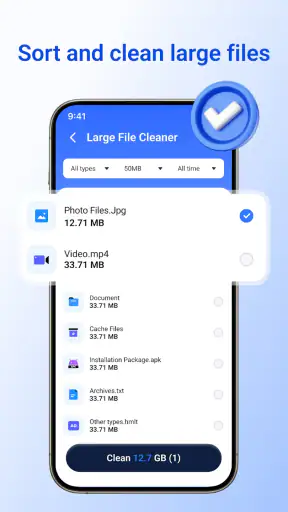
Dedicated file managers are usually stronger when the goal is organizing photographs, renaming documents, moving folders, or finding duplicate personal files. Junk Eraser is a better fit when I want a quick cleanup-oriented check. If my phone is full because of a large camera folder, I would choose a file manager or photo backup workflow instead. Deleting cache will not solve a problem caused by files I intentionally created.
Trust begins with visible choices
Because this app deals with storage, I pay attention to what I can see before granting access or confirming deletion. The important question is not simply whether the interface looks clean. I want clear explanations of what the app is examining, which items are selected, and what action will happen after I tap the confirmation button.
I would also read each permission request in context and avoid approving anything that does not appear necessary for the task I am trying to complete. Android’s permission controls are the right place to review or withdraw access later. If the app requests access to storage, I would expect that request to be connected to scanning or deleting files; I would not treat a vague explanation as enough reason to proceed.
The same cautious approach applies to data practices. I would check the app’s current privacy information and the disclosures shown during installation, especially if the app presents optional services, notifications, or personalization choices. I would not assume that a storage cleaner needs an account, cloud access, contacts, or unrelated device information. If a choice is optional, I prefer leaving it disabled until I understand its purpose.
This is where the app’s free price is helpful but not decisive. I can try it without paying, yet “free” does not by itself explain how an app handles information or presents optional offers. I judge those matters through the visible permission prompts, settings, privacy notices, and confirmation screens. A trustworthy cleanup routine should make the user feel in control before deletion, not only after it.
Moments when I would slow down
The most sensitive moment is the final cleanup confirmation. I would not tap it merely because the button is prominent or because the app reports a large amount of recoverable space. I would inspect the selected categories, deselect anything I recognize as useful, and make sure recent downloads or offline content are not included unintentionally.
I would be particularly careful on a shared family device. One person’s temporary-looking folder may be another person’s work material, school content, or travel documents. In that situation, I would ask the owner to review the list personally. The app can make the technical process easier, but it cannot know the personal value of every file.
A second sensitive moment comes after cleanup, when an application behaves differently. If a frequently used app takes longer to open or needs to rebuild previews, that may be an expected consequence of clearing temporary material rather than a sign that the phone is damaged. I would avoid repeatedly cleaning the same application just to chase a small amount of space. The time and inconvenience may outweigh the benefit.
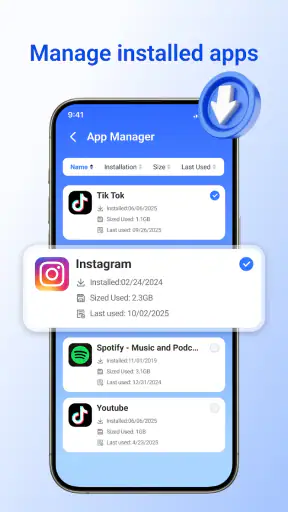
A third moment is when storage remains nearly full after the scan. That result is useful information. It means I should look beyond cache and review large videos, podcasts, downloads, messaging attachments, and unused applications. Repeating the same cleanup will not create meaningful room if those are the real source of the problem. In my view, a cleaner should guide the next decision, not encourage endless tapping.
Who will get the most from it
I see the strongest fit for people who want a straightforward maintenance tool and do not enjoy exploring Android settings. It can also suit users with older phones where storage pressure appears regularly, provided they review the proposed items carefully. The Everyone content rating makes it approachable for a broad audience, although younger or less experienced users may still need help understanding what deletion means.
The current release is version 1.1.1 and requires Android 8.0 or later, so compatibility covers many still-used devices while excluding older phones. Before installing, I would check the Android version in the device settings and make sure there is enough temporary room for the installation process itself. A phone that is completely full may need a quick manual deletion first.
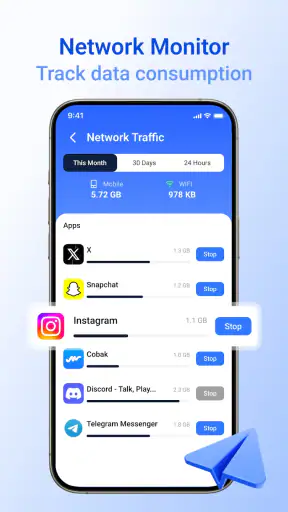
I would skip it if my main goal were advanced file organization, duplicate-photo detection, encrypted storage, or a detailed device-performance dashboard. Those jobs call for different tools or the built-in Android controls. I would also skip any cleaner that made me uncomfortable through unclear permissions, rushed confirmations, or persistent optional prompts. The app’s usefulness depends heavily on whether its choices remain understandable on my particular device.
Small habits that make the app safer and more useful
My first habit would be to review before every cleanup rather than assuming the previous selection is still appropriate. Storage changes constantly, and a file that was disposable last month may be important today. I would also avoid cleaning immediately before a trip, presentation, exam, or other event when I depend on offline content and need predictable app behavior.
My second habit would be to pair the app with a manual large-file check. After using its cleanup suggestions, I would sort personal media through Android’s storage tools or a file manager and remove only items I have already backed up or no longer need. This catches the files that a cache-focused tool is not meant to solve and gives me a more honest view of the phone’s storage situation.
My third habit would be to keep a record of what changed if the phone belongs to someone else. A quick note about which categories were cleaned can make troubleshooting easier later. If an app needs to rebuild content, I know what operation preceded the change. That is a simple but valuable safeguard when the cleaner is used by a family member who may not remember the exact steps.
I would also revisit permissions and optional settings after the first use. Android lets me manage access at the system level, and checking those controls reinforces the idea that installing a utility does not mean giving it permanent freedom. If I stop using the app, I would remove it or revoke access rather than leaving an unused maintenance tool on the phone without a reason.
My cautious verdict
Junk Eraser - Storage Manager is appealing because it keeps its purpose clear: help me examine removable clutter and reclaim space with less effort than a manual tour through settings. It is free, widely installed, and available for Android 8.0 and later. For a user who wants a simple storage check and is willing to read the cleanup screen, that is a reasonable combination.
My recommendation comes with an important condition: I would use it selectively, not automatically. The app should not become an excuse to delete anything labeled as unnecessary, and it should not replace backups, photo organization, or Android’s own storage information. Its best role is a cautious first pass that highlights temporary clutter, followed by a deliberate review of personal files.
For someone who regularly runs out of room and wants an approachable tool, I think it is worth trying. For someone who needs deep control, transparent file-by-file organization, or a solution to a media-heavy phone, the usual system tools or a capable file manager will be better. In the end, I would keep using a cleaner only if its permission prompts, data choices, and deletion screens remain clear enough for me to make every decision confidently.
My bottom line: this is a practical maintenance app for careful users, not a one-tap cure for every storage problem. Used with a review-first workflow, it can make routine cleanup less frustrating. Used without checking what is selected, it can create more inconvenience than value. That balance is exactly why I would recommend it to a friend with a full phone, while reminding them to stay in control of every deletion.


